
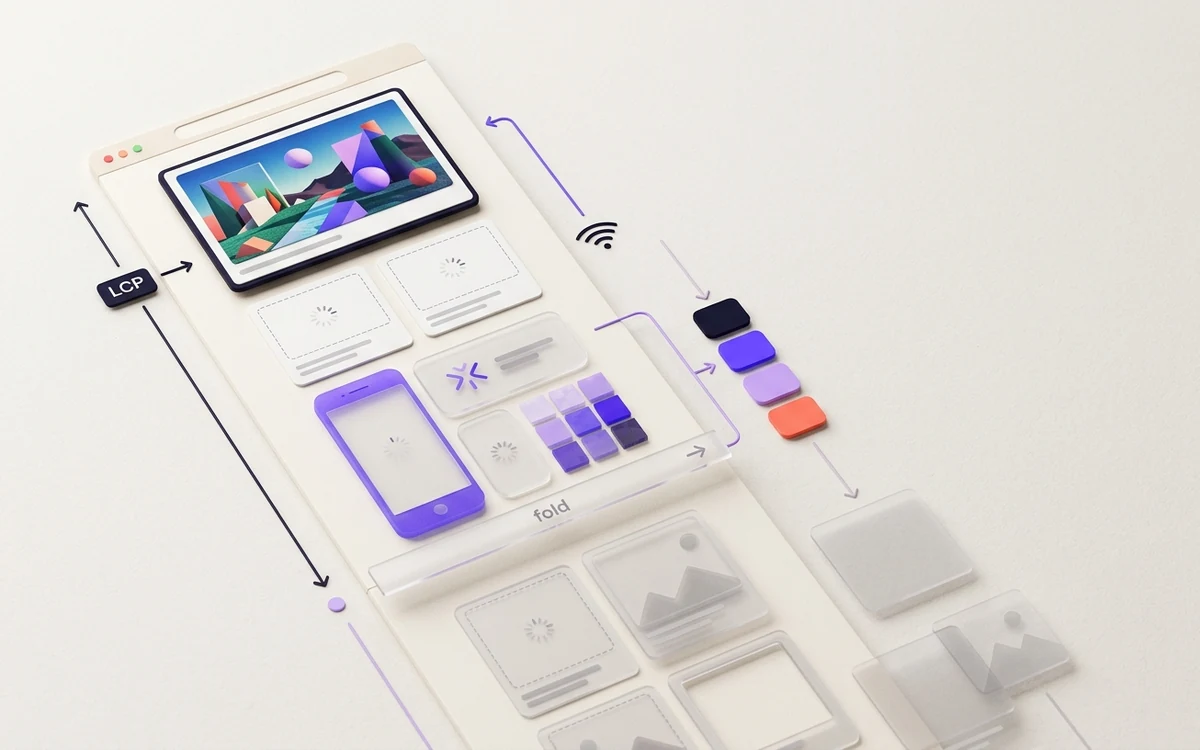
You lazy-load images without hurting LCP by lazy-loading only the images below the fold and loading the main above-the-fold image eagerly, with fetchpriority="high" and a URL the browser can find in the raw HTML. Most LCP damage from lazy loading comes from one mistake: putting loading="lazy" on the hero image.
What is LCP, and what counts as the LCP element?
Largest Contentful Paint measures how long it takes for the largest visible piece of content to render. It's one of Google's Core Web Vitals. Per web.dev, a good score is 2.5 seconds or less at the 75th percentile, split by mobile and desktop.
The candidates are <img> elements, <image> inside SVG, video poster images, CSS background images loaded with url(), and blocks of text. On most content pages and product pages, the LCP element is an image. Usually it's the hero, the product photo, or the featured image at the top of a post.
How does native lazy loading work?
Add loading="lazy" to an <img> or <iframe> and the browser holds off fetching it until it gets close to the viewport. How close depends on the browser. Chrome, for example, starts loading lazy images around 1,250px before they come into view on fast connections and 2,500px on slower ones, so most users never see an empty box.
<img src="chart.png" loading="lazy"
  width="1200" height="675"
  alt="Traffic by month, 2025 vs 2026">
That's all you need. The default is loading="eager", so images without the attribute load right away.
Always include width and height on lazy images. An unloaded image with no size is zero pixels tall, which causes layout shift when it finally appears. Our guide to stopping images from shifting your layout explains how those attributes reserve space.
Why does lazy-loading the hero image hurt LCP?
A lazy image can't start downloading until the browser has done layout and confirmed the image is near the viewport. An eager image starts as soon as the preload scanner spots it in the HTML, often before the CSS has even arrived. That gap is pure waiting time. web.dev's LCP guidance is blunt about it: "Never lazy-load your LCP image."
This is easy to do by accident. Many CMS themes and plugins add loading="lazy" to every image. WordPress now tries to skip the first content image, but custom themes, page builders, and sliders often undo that. Check your rendered HTML, not your template.
Should you add fetchpriority="high" to the hero image?
Yes. Chrome, for one, often starts image requests at a lower priority until layout shows the image is actually visible. fetchpriority="high" tells the browser this one matters now.
<img
  src="hero-1200.jpg"
  srcset="hero-800.jpg 800w, hero-1200.jpg 1200w, hero-1800.jpg 1800w"
  sizes="100vw"
  width="1800" height="900"
  fetchpriority="high"
  alt="Mountain bike on a forest trail">
It's supported in Chrome and Edge 102+, Safari 17.2+, and Firefox 132+. Browsers that don't know it just ignore it. It's a hint, not a command, so don't expect miracles on a slow server. And don't put it on five images. If everything is high priority, nothing is. One, maybe two images per page is the sane limit.
On carousels, only the first slide should get it. The other slides can be lazy.
When do you need to preload the LCP image?
The preload scanner only finds images that sit in the HTML as <img src> or srcset. It can't see:
- Background images set in an external CSS file.
- Images added by JavaScript, including many React or Vue hero components that render client-side.
- Images whose URL lives in
data-srcuntil a script swaps it in.
For these, add a preload link in the <head>:
<link rel="preload" as="image"
  href="hero-1200.jpg"
  imagesrcset="hero-800.jpg 800w, hero-1200.jpg 1200w, hero-1800.jpg 1800w"
  imagesizes="100vw"
  fetchpriority="high">
imagesrcset and imagesizes work like srcset and sizes, but only on rel="preload" with as="image". Make sure they match what the page actually uses. If the preload picks hero-1200.jpg and the real element picks hero-1800.jpg, you've downloaded two images and made LCP worse.
If the hero is a plain <img> in server-rendered HTML, you usually don't need preload. fetchpriority="high" on the element does the job with less to keep in sync. We cover the same tradeoff for icons in favicon preload and performance. Short version: most small images shouldn't be preloaded at all.
Does the decoding attribute matter?
A little. decoding="async" tells the browser it can decode the image off the main rendering path. sync asks it to decode together with the surrounding content, and auto (the default) lets the browser decide. MDN notes the differences are most visible when you insert images with JavaScript. For a normal hero image, leave it alone or use auto. It won't fix a slow LCP. Big file sizes and late discovery are almost always the real problem.
Are JavaScript lazy-loading libraries still worth using?
For most sites, no. Native lazy loading works in every major browser. Older libraries like lazysizes work by leaving src empty or pointing it at a placeholder, then swapping in data-src when a script runs. That hides the real URL from the preload scanner. For images below the fold, that's fine. For the LCP image, it adds the full cost of downloading, parsing, and running the script before the image fetch even begins.
If you keep a library for special cases, like fancy blur-up effects, exclude the first screen of images from it. Most libraries have a class or attribute to opt out.
How do you find your LCP element?
Don't guess. The LCP element on mobile is often different from desktop. A headline can beat the hero on a narrow screen, or a cookie banner can take the prize.
- PageSpeed Insights. Run your URL. The lab diagnostics name the LCP element and break its time into subparts. The top section shows real-user field data from the Chrome UX Report when your page has enough traffic.
- Chrome DevTools Performance panel. Record a page load with mobile throttling. The LCP marker in the timings track points to the element. Click it to highlight the node.
- The web-vitals library. The attribution build reports which element was the LCP for real visitors, along with the timing breakdown. Send that to your analytics and you'll see which templates have which LCP element.
Once you know the element, check its HTML. Is it lazy? Is it in the source, or injected later? Is the file 900 KB? Our post on image compression quality settings helps with that last one, and picking a modern format from our WebP vs AVIF vs JPEG comparison can cut it further.
How should the hero and the rest of the page differ?
| Setting | LCP / hero image | Below-the-fold images |
|---|---|---|
loading | Omit (eager) | lazy |
fetchpriority | high | Omit (or low for off-screen carousel slides) |
| URL in HTML | Real src/srcset, or preloaded | Native src preferred |
width/height | Yes | Yes |
sizes | Explicit value | auto plus a fallback works here |
That last row ties into srcset and sizes. sizes="auto" only works on lazy images, so it's a nice fit for the lower half of the page and not an option for the hero.
Common mistakes
- Blanket
loading="lazy"from a plugin or component default. Check the first image in the rendered HTML on every template. - Lazy-loading everything, then preloading the hero to compensate. Now you have two conflicting signals. Just remove
lazyfrom the hero. - Preload that doesn't match the element. Different URL, different
imagesizes, or a different format from a<picture>source means a double download. fetchpriority="high"on every image. It stops meaning anything.- Hero images rendered only on the client. Server-render the hero markup, or at least preload it.
- Testing only on desktop. The LCP element and the fold both move on phones. Test at a phone width with throttling.
The checklist
- Find the LCP element on mobile and desktop with PageSpeed Insights or the DevTools Performance panel.
- Make sure that image has no
loading="lazy". - Put its real URL in the HTML as
srcorsrcset, not indata-src. - Add
fetchpriority="high"to it, and to nothing else (or at most one other image). - If it's a CSS background or injected by JavaScript, add a matching
<link rel="preload" as="image">withimagesrcsetandimagesizes. - Serve it at the right size with
srcsetandsizes, in a modern format, well compressed. - Add
loading="lazy"pluswidthandheightto images further down the page. - Re-test, then watch field data. CrUX data in PageSpeed Insights covers a rolling 28-day window, so give it a few weeks before judging.
Your favicon won't ever be the LCP element. The browser fetches it separately from page content. Keep it small anyway so it doesn't compete for bandwidth early. The favicon generator outputs lean PNG, ICO, and SVG files sized for each surface.
TL;DR
Lazy-load images below the fold with native loading="lazy", but load the LCP image eagerly with fetchpriority="high" and a URL in the HTML. Preload it only when it's hidden in CSS or JavaScript. Find the actual LCP element first, because on mobile it's often not the one you expect.