
ICO to PNG Converter
Upload favicon.ico, extract every embedded resolution as a lossless transparent PNG, and download the frames with a machine-readable report.
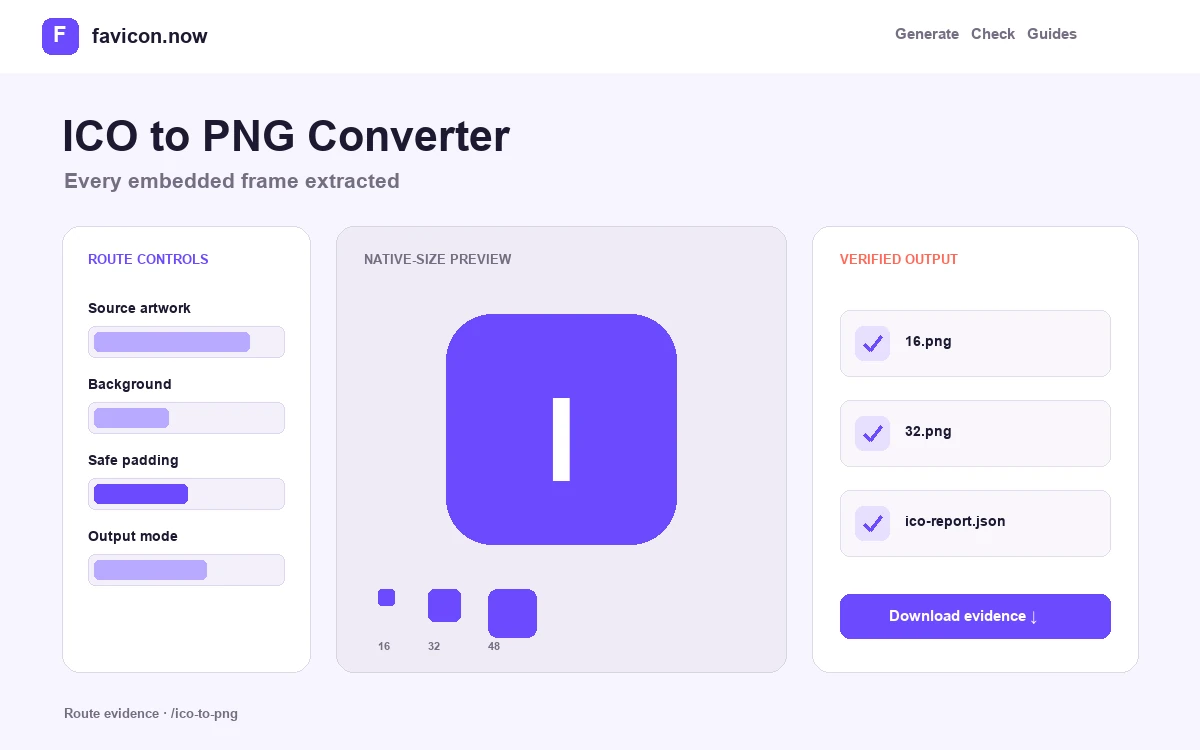
Convert every ICO frame into a named PNG file
An ICO is a directory plus one or more embedded images, not a bitmap with a different extension. The converter opens that directory, decodes each available frame, and writes lossless PNG files named by their real width and height. It also includes a JSON inventory so the result can be reviewed or processed without guessing from filenames.
Frame-by-frame extraction
A six-frame browser favicon can contain 16, 32, 48, 64, 128, and 256 pixel images. Each successful decode becomes a separate PNG, making it possible to compare the tiny hand-tuned frame with a larger source instead of exporting only the first or largest image.
Transparency preservation
Decoded alpha is retained in the PNG output. Check the result against light and dark backgrounds because older ICO frames can combine masks and color data in ways that a single white preview conceals.
Documented ZIP output
The download contains collision-safe frame names and ico-report.json with dimensions, mode, square status, and frame count. That inventory is useful during migrations and makes an automated asset review repeatable.
When conversion helps—and when it cannot
Extracting PNGs is useful when a legacy package contains the only available small-size artwork, when you need to inspect hand-tuned frames, or when a CMS accepts PNG but not ICO. It does not turn a 16-pixel source into high-resolution artwork. Never upscale the smallest frame and present it as a new 512-pixel master; recover the largest clean frame or return to the original vector or brand source.
After extraction, compare the 16×16 and 32×32 images at native size, verify transparent edges, and select the frame appropriate to the target surface. Generate Apple touch and maskable app icons separately if the archive does not contain compositions designed for those larger cropped contexts.
ICO to PNG questions
Does converting ICO to PNG lose quality?+
No. Each embedded frame is decoded and re-encoded as a lossless PNG at its exact original dimensions, with alpha preserved. Nothing is resampled, upscaled, or recompressed with loss.
Why did my ICO produce only one PNG?+
The container genuinely holds one frame. Many “ICO” files are renamed bitmaps or single-image containers; the extraction proves what is really inside, which is exactly why the inventory report is included.
Can I turn the extracted 16-pixel PNG into a new large favicon?+
No. Upscaling a tiny frame cannot recreate missing detail. Recover the largest clean frame, or return to the original vector or high-resolution brand source and build a new package.
Is my ICO file uploaded and stored?+
The file is processed in memory to produce the ZIP response and is not intentionally retained. Only a minimal usage event—tool, outcome, and date—is recorded, never the file contents.
From favicon idea to verified deployment
Follow one clear path through creation, inspection, installation, and troubleshooting.