
JPG to ICO Converter
Turn a JPG or JPEG logo into a clean multi-size ICO and complete favicon package with crop, padding, color, and browser previews.
This is how a clear favicon helps your result feel recognizable.
Prepare photographic artwork for tiny icon sizes
JPEG has no transparency and can carry compression noise around sharp edges. Use the live 16×16 and 32×32 previews to simplify the crop and make sure the subject remains recognizable after reduction.
Favicon.now converts the composed square—not the untouched upload—so the ICO, PNG, Apple, and PWA files match the exact background, padding, and crop shown in the editor.
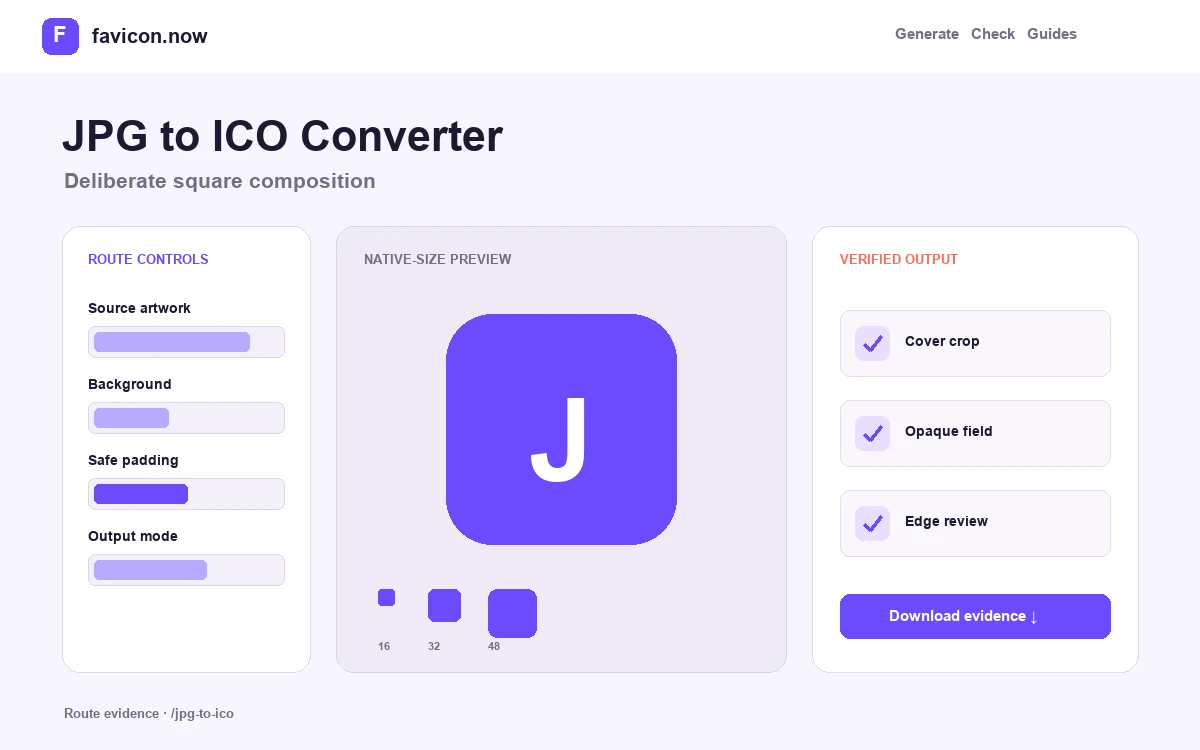
Account for JPEG compression before reduction
JPEG introduces block and ringing artifacts around hard edges. Crop tightly around one recognizable subject, then inspect the 16×16 preview; compression noise that is subtle at full size can muddy a tiny favicon.
Choose a background because JPEG has no alpha
A JPG cannot contain transparent pixels. The chosen square background becomes part of every exported frame, so match it to the brand rather than assuming the converter can recover a removed background.
Use photography only when the silhouette survives
Faces, products, and textured images often need a closer crop than logos. If the native-size preview becomes an indistinct patch, simplify the source or create a symbol rather than sharpening the same photograph repeatedly.
1600×1200 JPEG product photograph
Square cover crop · deliberate background · compression edge review
Consistent ICO frames generated from the approved composition
JPG to ICO Converter output matrix
favicon.icoComposed raster framesLegacy and desktop clientsfavicon.svgSafe image-backed fallbackPackage consistencyREADME.txtCrop and installation notesHandoff evidenceControl the square crop and compression before ICO export
JPEG brings two fixed constraints: it has no alpha channel, and hard edges may already contain compression noise. The production icon should therefore preserve an approved crop and background rather than pretending to recover transparency.
Choose one readable subject
Use cover for a deliberate close crop or contain for the complete image. At 16 pixels, a face, product, or symbol needs enough visual weight to survive without its surrounding scene.
Look for ringing at native size
Inspect bright and dark borders around the subject. Repeated JPEG saves create block and halo artifacts that become muddy when reduced into small ICO frames.
Archive the crop decision
Store the original JPEG, chosen fit, background color, and exported package together. That record prevents a future maintainer from generating a different composition from the same photograph.
If the favicon needs a clean transparent logo edge, locate the original SVG or transparent PNG. A JPEG converter cannot reconstruct pixels discarded by the format.
Compare JPEG with favicon-ready formats →JPG to ICO Converter FAQ
Can the converter remove a JPG background?+
No. Remove it in an image editor first, or compose the photo on a deliberate square background.
Why does my JPG favicon look blurry?+
The source may be compressed, too wide, or too detailed for the final pixel grid.
Should a photo use contain or cover?+
Cover usually gives the subject more visual weight, but preview the crop at 16×16 before committing.
From favicon idea to verified deployment
Follow one clear path through creation, inspection, installation, and troubleshooting.